
Microsoft Outlook 2002 - Alternate Port - Setup Guide
Important Points
While Outlook 2002 is technically compatible with AuthSMTP we have seen some apparent bugs in it where a message can fail to be sent (perhaps if it would take you over quota) but Outlook ignores it and incorrectly marks the message as sent. It seems Outlook 2002 is outside of Microsoft mainstream support since 2006 so it is unlikely any non-security bugs would be fixed - we would recommend you consider upgrading to a newer version.
- First you need to make sure the email address(es) you will be sending from have been authorised for your account in our Control Panel .
- These instructions assume your email account has already been setup and is collecting email correctly.
- Take a note of any settings you change.
- Only change the items specified - you should not need to change either your email address, POP3 server, POP3 username / password.
- These instructions are only for Microsoft Outlook 2002 - for other email programs please see How To Setup AuthSMTP or contact us.
- We have instructions for both default SMTP port and alternate SMTP port configurations - alternate port is generally used if your ISP blocks the normal port 25 SMTP access (as many do these days!).
Step One
- Load Microsoft Outlook 2002
- From the main screen open the 'Tools' menu and then select 'E-mail Accounts...'
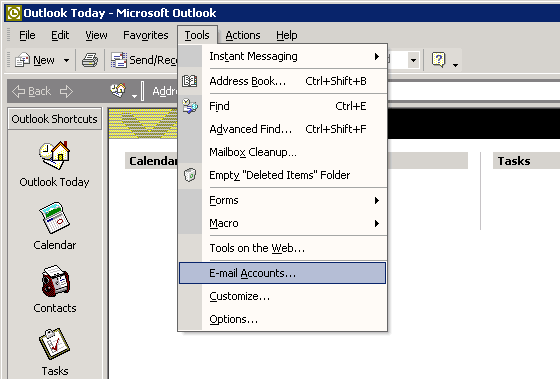
Step Two
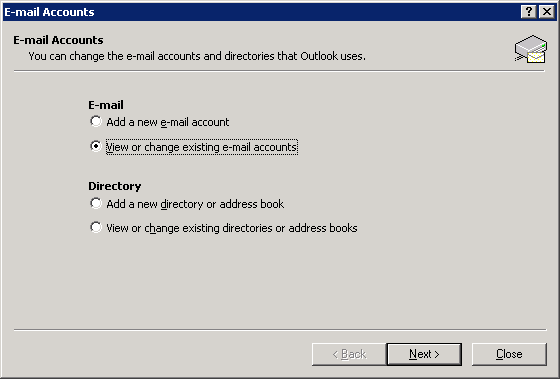
- Select 'View or change existing e-mail accounts'
- Click the 'Next >' button
Step Three
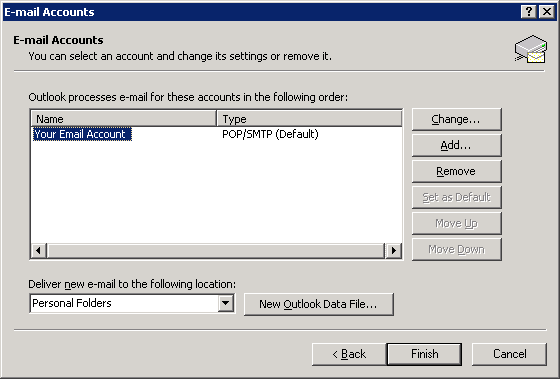
- Click on the email account to modify - this will cause it to become highlighted
- Click on the 'Change...' button
Step Four
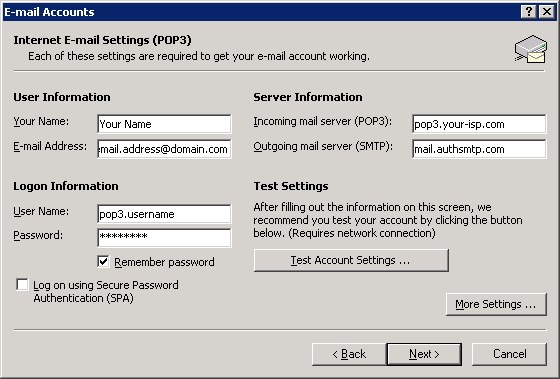
- Change the 'Outgoing mail server (SMTP)' to the SMTP server we supplied with your signup email
- Click the 'More Settings...' button
Step Five
- Click the 'Outgoing Server' tab
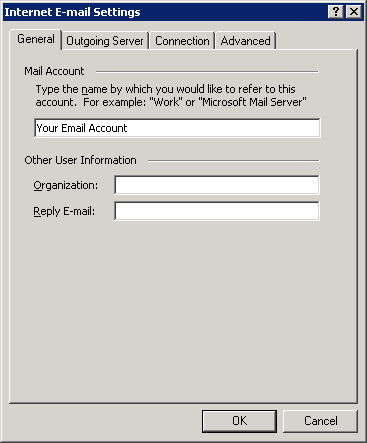
Step Six
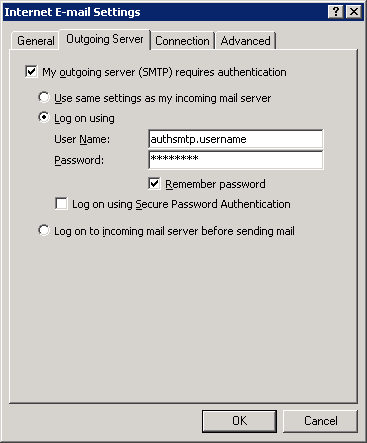
- Tick 'My outgoing server (SMTP) requires authentication'
- Select 'Log on using'
- Enter the AuthSMTP username and password we supplied when you signed up
- IMPORTANT: 'authsmtp.username' is an example - if your AuthSMTP username was 'ab12345' enter it as that and *not* as 'authsmtp.ab12345'
- Tick the 'Remember password' option
Step Seven
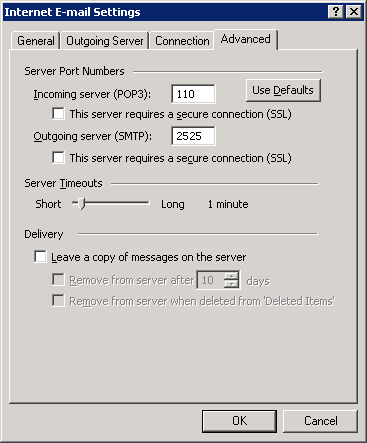
- Click on the 'Advanced. tab
- Change the 'Outgoing mail (SMTP)' port number to the alternate port(port 2525 is recommended)
- 'Ok' button
Step Eight
- Click the 'Next >' button then the 'Finish' button
Step Nine
- You should now be back to the main Outlook 2002 screen
- Close Outlook 2002 and then reload
- Check you are online then test to ensure you can send mail correctly
- All done!