
Microsoft Pocket Outlook - Setup Guide
Important Points
- First you need to make sure the email address(es) you will be sending from have been authorised for your account in our Control Panel .
- These instructions assume your email server / account has already been setup and is collecting email correctly.
- Take a note of any settings you change.
- Only change the items specified - you should not need to change your incoming email settings.
- These instructions are only for Microsoft Pocket Outlook - for other email programs please see How To Setup AuthSMTP or contact us.
- At the time of writing it appears Microsoft Pocket Outlook only supports the default SMTP port (port 25).
Step 1
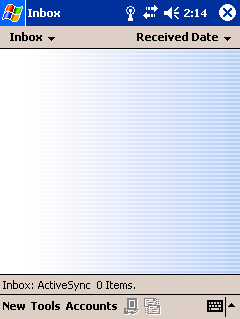
- From the Pocket Outlook main screen - select the 'Accounts' menu.
Step 2
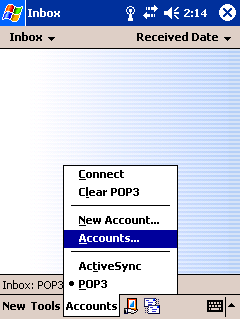
- Select the 'Accounts...' option.
Step 3
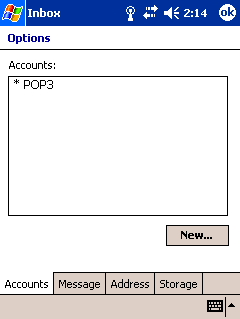
- Click on your mailbox name (i.e. POP3 in the example above).
Step 4
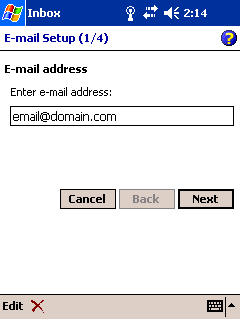
- Your email address should already be entered - so no changes required -click 'Next'.
Step 5
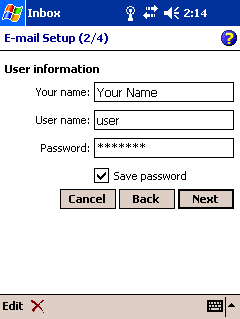
- Your name, user name and password should already be entered - so no changes required - click 'Next'.
Step 6
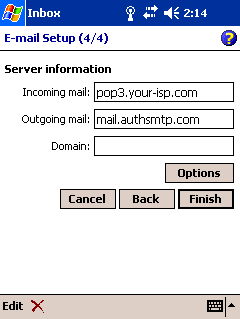
- Your POP3 (incoming mail) server should already be entered.
- Enter the AuthSMTP server we supplied - for example: mail.authsmtp.com
- You should normally leave the 'domain' box blank with standard POP3 /IMAP mail.
- Click on 'Options'.
Step 7
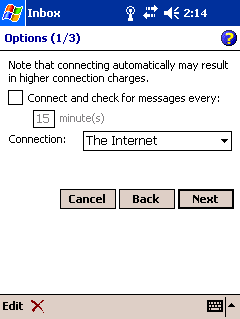
- No changes should be required - click 'Next' on the first screen (1/3).
Step 8
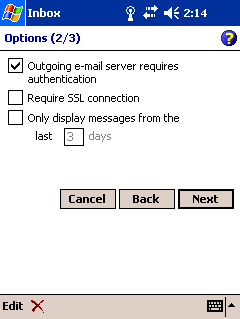
- On the second page (2/3) tick 'Outgoing e-mail server requires authentication'.
- Click 'Next'.
Step 9
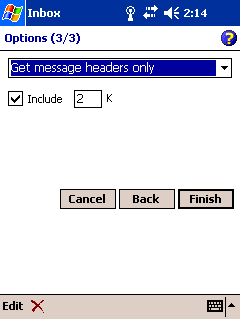
- No changes should be required on the third page (3/3) - click 'Finish'.
- Done!