
BVRP Mobile Phone Tools - Setup Guide
Important Points
- First you need to make sure the email address(es) you will be sending from have been authorised for your account in our Control Panel .
- These instructions assume your email server / account has already been setup and is collecting email correctly.
- Take a note of any settings you change.
- Only change the items specified - you should not need to change your incoming email settings.
- These instructions are only for BVRP Mobile Phone Tools - for other email programs please see How To Setup AuthSMTP or contact us.
- At the time of writing it appears BVRP Mobile Phone Tools only supports the default SMTP port (port 25).
Step One
- In the 'Setup' option select 'General Setup'.
- Select the 'Email' tab.
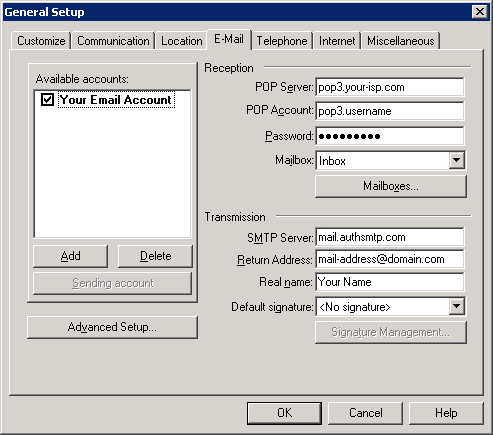
- Enter the SMTP server name we gave - for example: mail.authsmtp.com
- Enter your 'email address in the 'Return Address' box.
- Enter your name in the 'Real Name' box.
Step Two
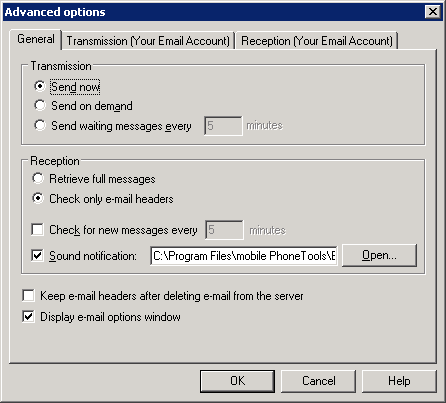
- Click on the 'Advanced Setup' button.
Step Three
- Click on the 'Transmission' tab.
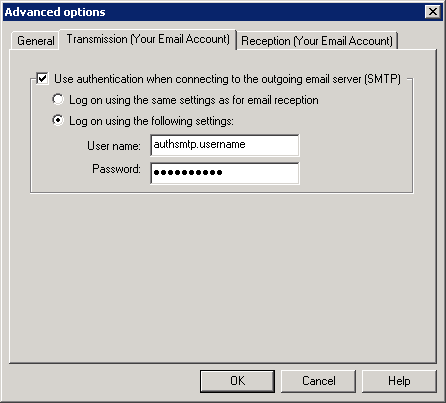
- Enter the AuthSMTP username and password we supplied when you signed up.
- IMPORTANT: 'authsmtp.username' is an example, if your AuthSMTP username was 'ab12345' enter it as that and *not* as 'authsmtp.ab12345'
- Click 'Ok' then 'Ok' again.
- Done!